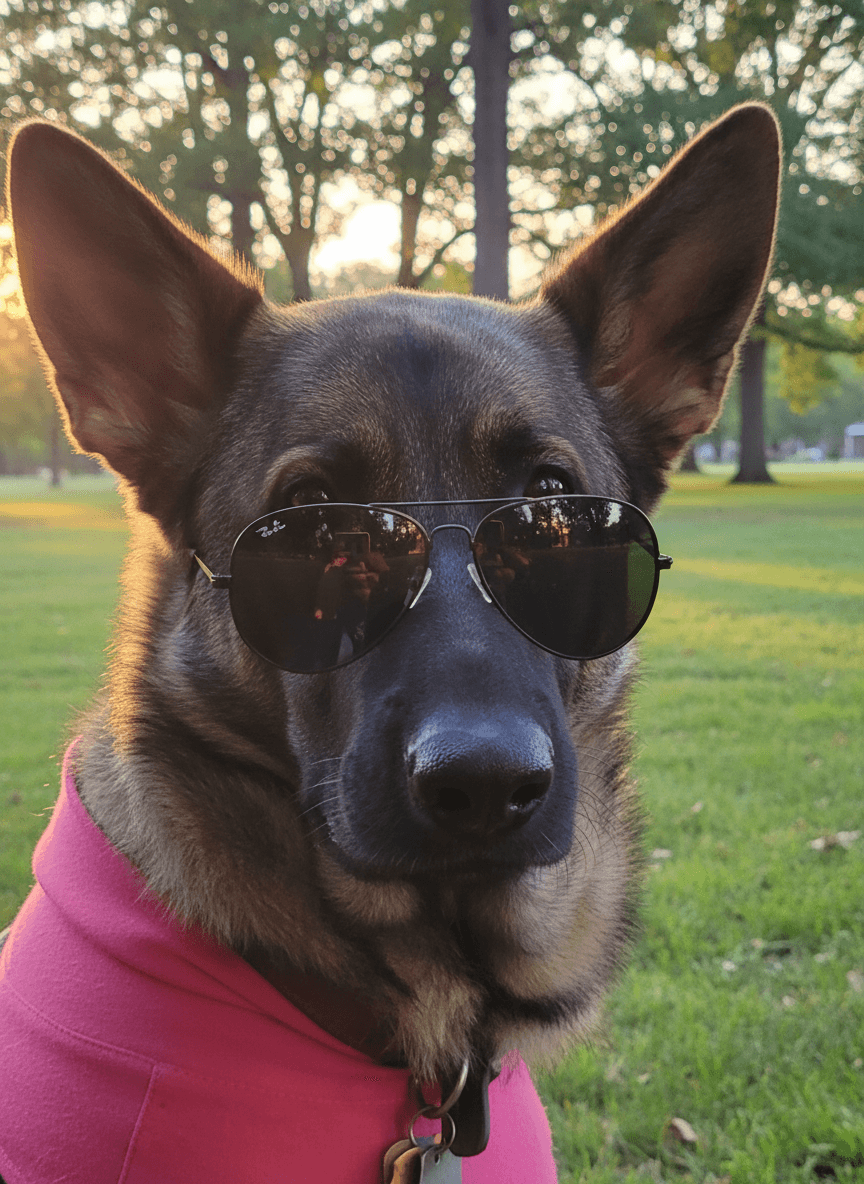
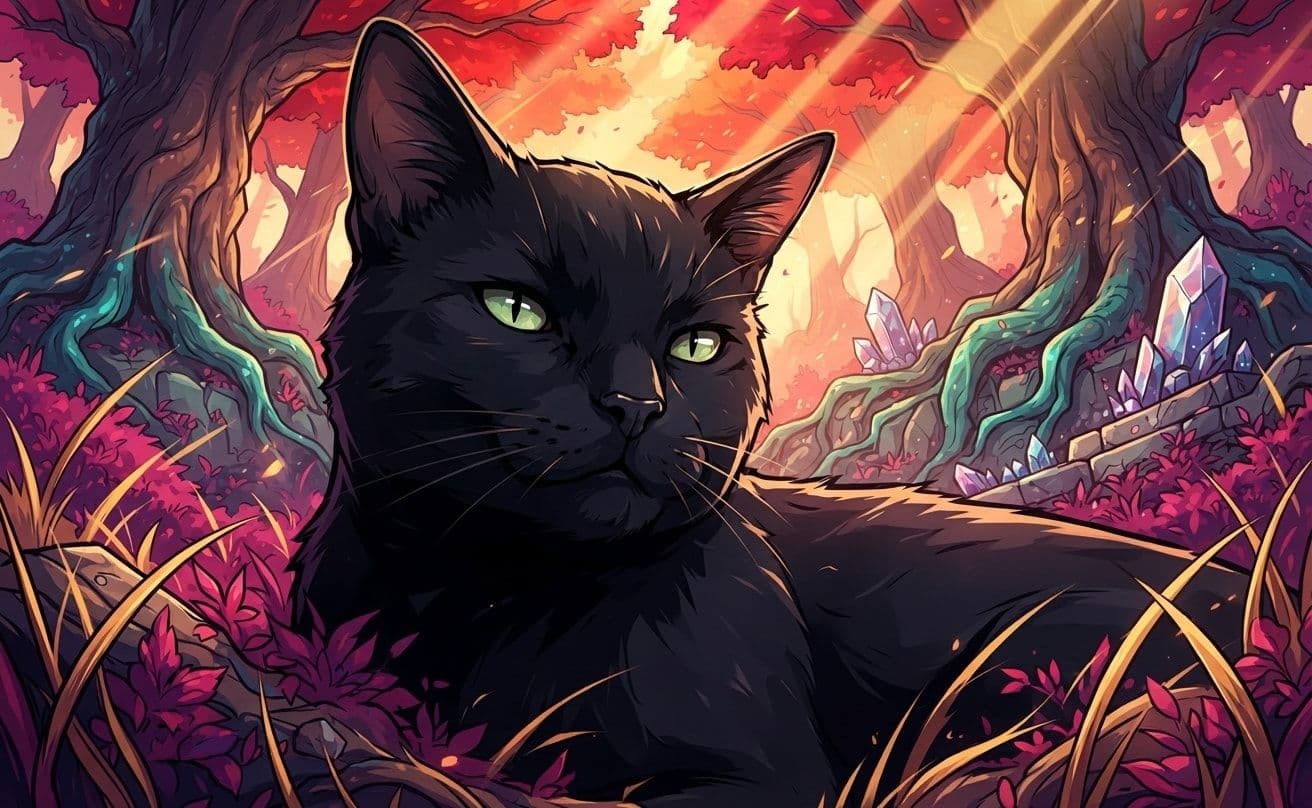
Creative Mode changes how EditMyPet treats your pet when it builds a new scene. With it off, your pet stays close to the source photograph while the surroundings take on your selected style. Turn it on and the pet is re-rendered in that artistic medium too.
The quick answer: leave Creative Mode off when you want a realistic pet in a new setting. Turn it on when you want the whole result to feel like one cohesive illustration, painting, model or graphic artwork.
What changes when Creative Mode is on?
Creative Mode off: preserve the photographic pet
Standard Mode treats your uploaded pet as the visual anchor. It replaces the environment and applies the chosen look to the scene, while keeping the pet’s original coat, markings, pose, expression, scale and crop as close to the photo as possible. Lighting and colour can be adjusted so the pet belongs in the new background.
This usually works best for:
- Natural portraits and believable studio scenes
- Background changes where recognisable photo detail matters most
- Edits where you want realistic fur against a stylised environment
Creative Mode on: style the pet and scene together
Creative Mode uses the photo as an identity and composition reference rather than a texture-preservation target. It can repaint fur, simplify edges, reshape shading and translate surface detail into the language of the selected medium. The goal is a cohesive artwork while keeping the same recognisable pet, pose and framing.
One important exception: some styles are visually strong enough to influence the pet even when Creative Mode is off. Neon Psychedelic, for example, may still carry some of its fluorescent colour, glow and graphic treatment onto the pet so the whole image feels consistent. Turning Creative Mode on pushes that treatment further, re-rendering the pet more completely in the chosen style.
Another Creative Mode example
The difference is especially clear in styles built from bold shapes and a limited colour palette. Creative Mode carries that visual language across the pet instead of applying it only to the scene.
When should you turn Creative Mode on?
Creative Mode is most useful when a photographic pet would look pasted into the finished image. Try it when the selected style has a strong material or mark-making language.
- Watercolour, oil paint, ink, manga and storybook illustration
- Pixel art, clay, plush, felt and toy-like styles
- Graphic, cinematic or highly stylised concepts
Because Creative Mode redraws more of the image, small details may vary more than they do in Standard Mode. Start with a clear photo where the face, eyes, markings and visible body shape are easy to read.
How to use Creative Mode on the Create page
In Guided Flow
- Upload a clear photo of your pet.
- Choose a scene, style and any optional extras.
- On the confirmation step, switch Creative Mode on if you want the pet rendered in the selected medium.
- Review the summary, then create your images.
In Fast Create
Open the complete studio, make your scene and style choices, then use the Creative Mode switch in Generation options before creating the result.
Which setting should you choose?
There is no universally better setting. Standard Mode prioritises photo fidelity; Creative Mode prioritises a unified artistic finish. If you are unsure, create one version with Creative Mode off and another with it on, then compare which interpretation fits the final use.
Try the same style with Creative Mode off and on to compare the result.
Create your pet editFrequently Asked Questions
What is the difference between Standard Mode and Creative Mode?
Standard Mode keeps the pet close to the source photograph while styling the new environment. Creative Mode also re-renders the pet’s fur, edges, shading and texture in the chosen medium.
Will Creative Mode still keep my pet recognisable?
It is designed to preserve your pet’s identity, markings, pose and framing, but it redraws more of the image, so small details can vary more than in Standard Mode.
Which styles work best with Creative Mode?
Creative Mode is especially useful for strong artistic mediums such as watercolor, oil paint, manga, pixel art, clay, plush and storybook illustration.
Is Creative Mode available in Guided Flow and Fast Create?
Yes. In Guided Flow it appears in Generation options on the confirmation step. In Fast Create it appears with the other generation options in the complete studio.