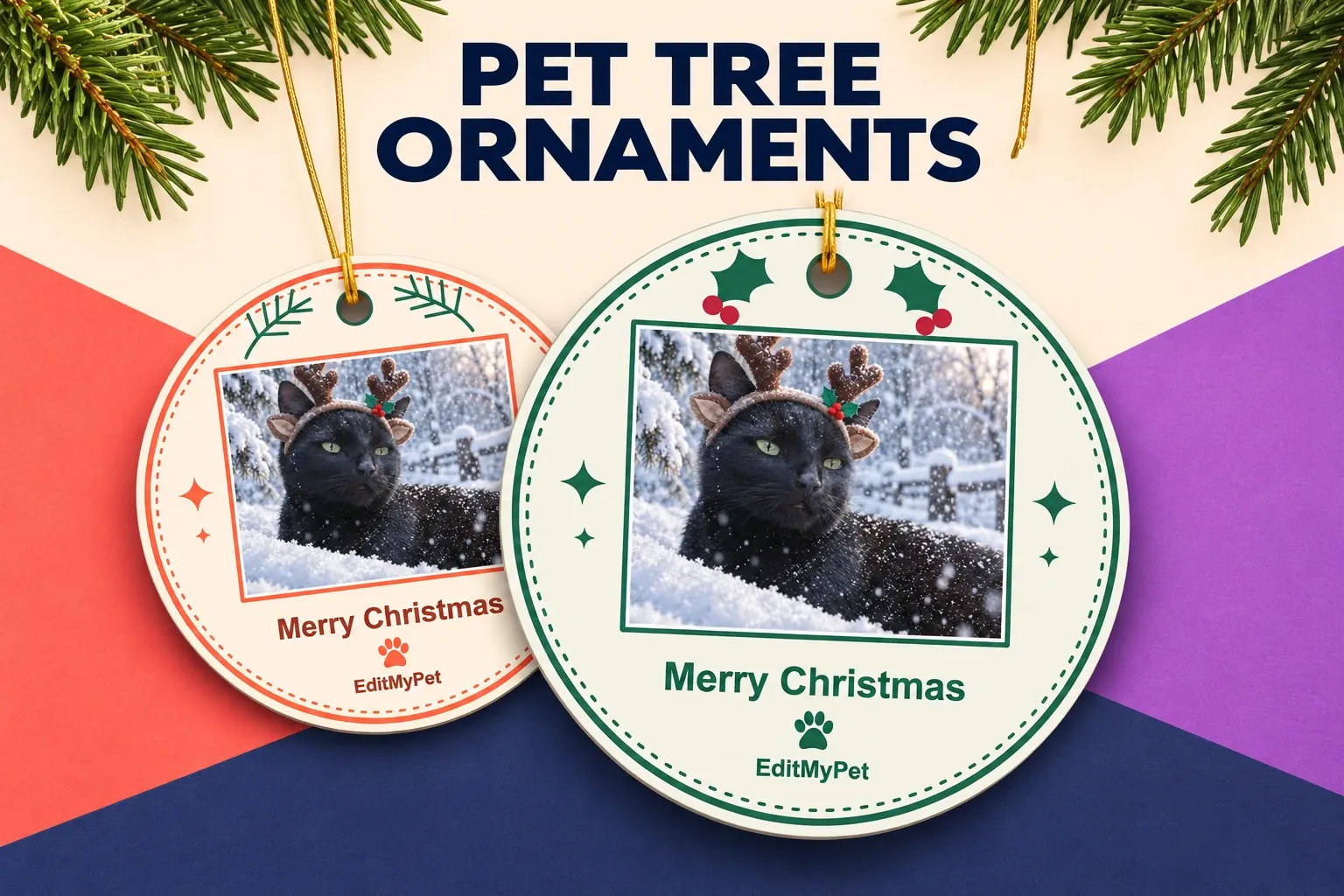
The free paper ornament template lets you put two pets on one ornament. Print a sheet with each photo and use two matching circles. It also works for a puppy photo on one side and a more recent portrait on the other.
Add the photos
Add a photo or pick one under “My generated portraits”. The message box is a good spot for a name and year, such as “Pip, Christmas 2026”. If the frame cuts off an ear, “Show whole photo” gives it a bit more room.
Download the first PDF. Replace the photo and message, then download the second PDF. Name each file for the pet so you can tell the prints apart.
Print both PDFs on the same paper size at 100%, using single-sided printing. The scale bar under the circles should measure 25 mm. Each finished ornament is 68 mm across.
Put the ornament together
Cut one circle in the same colour from each sheet. Hold them back to back and line up the two ribbon marks at the top. Flip the pair sideways to make sure both photos are upright before you add glue.
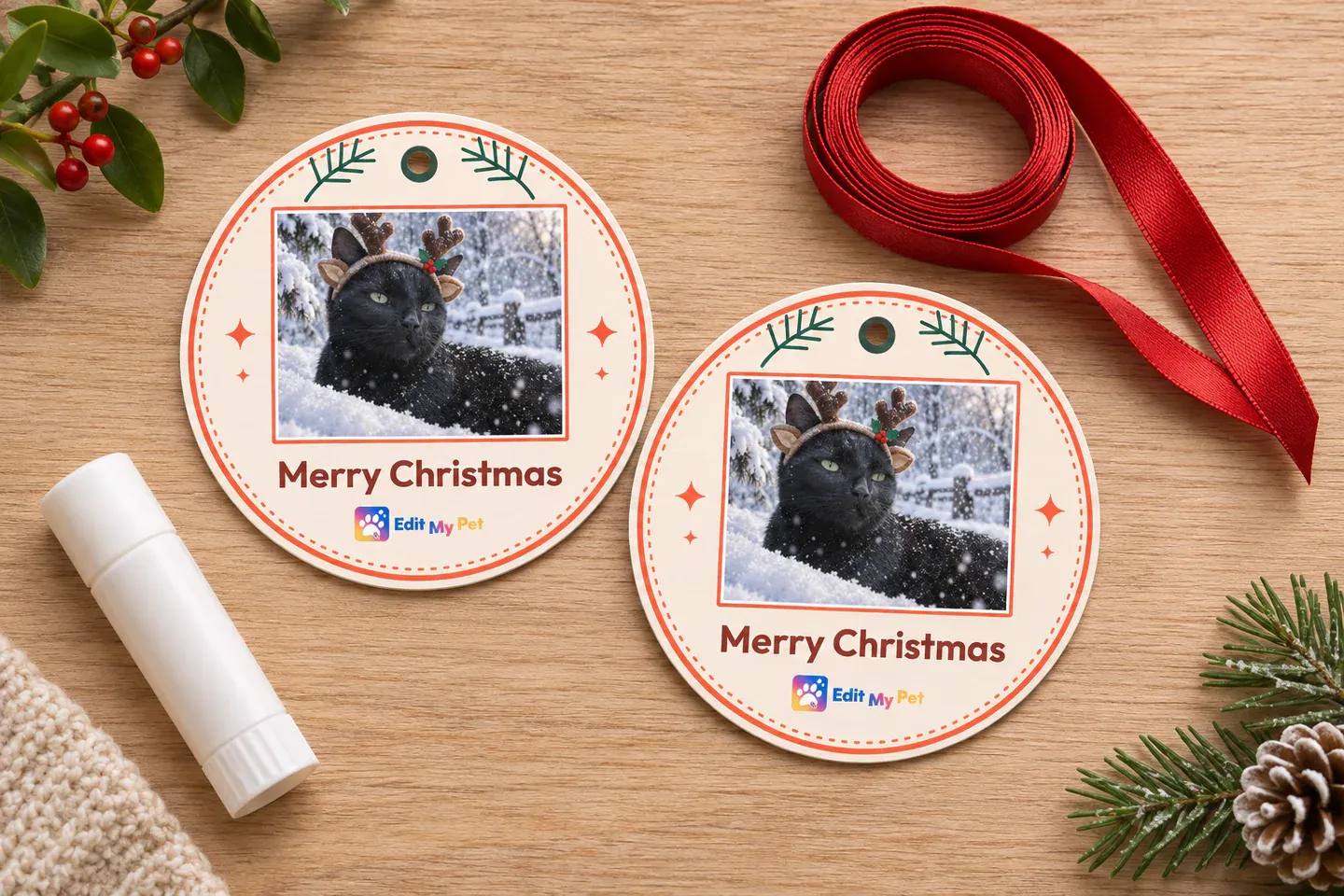
Separate the circles, spread a thin layer of glue over one plain back, then press the pair together again. Smooth from the middle out to the rim and leave the ornament flat while the glue dries.
Punch through both layers at the marked circle and tie on a loop of narrow ribbon. The leftover circles make another pair if you’d like a second ornament to give away.
Sample PDFs
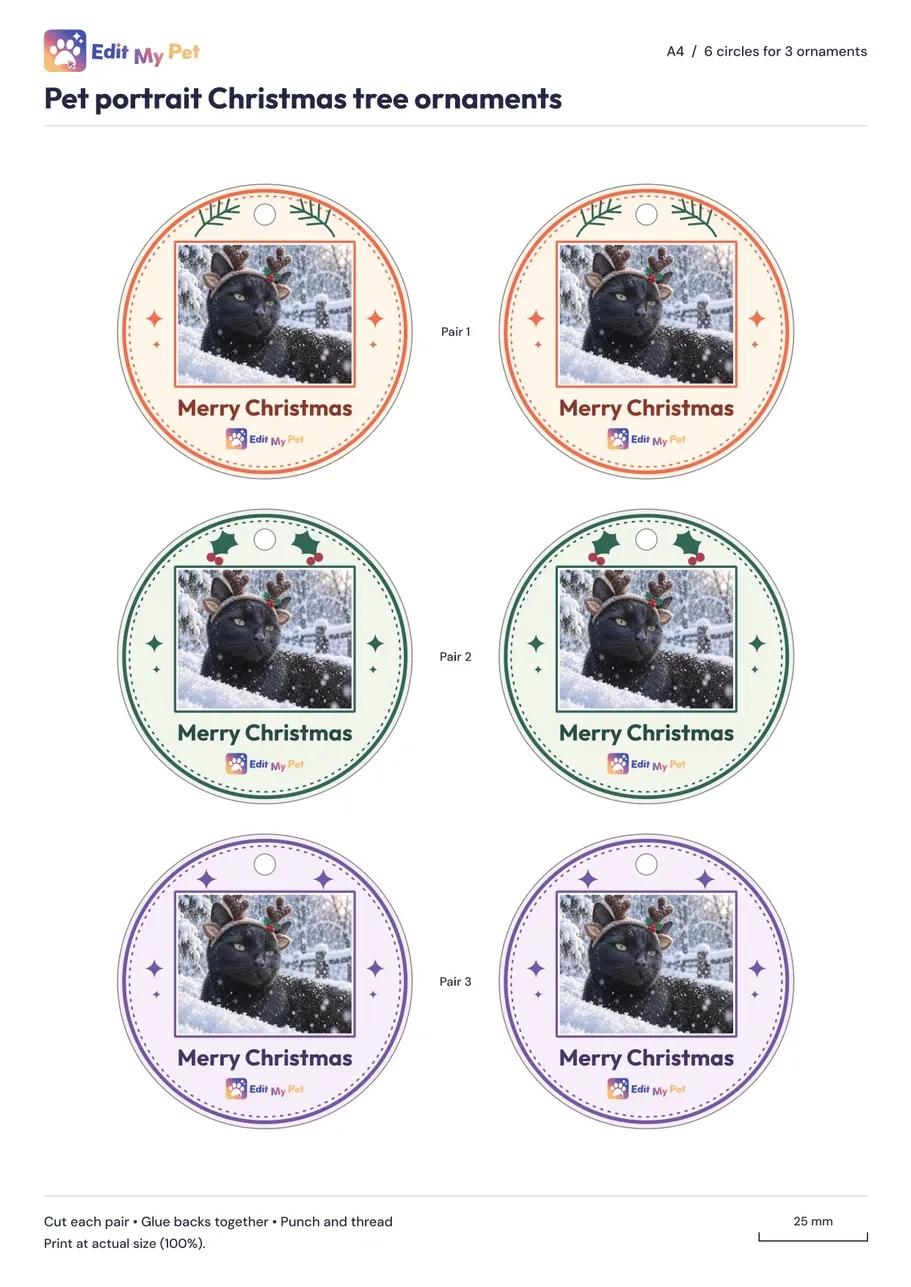
To print the sample with the cat in antlers, choose A4 or US Letter. Each sheet makes three ornaments.
Frequently Asked Questions
Can I put the same pet on both sides from one sheet?
Yes. Print one PDF and glue the circles from each matching row together. This gives you three ornaments with the same pet on both sides.