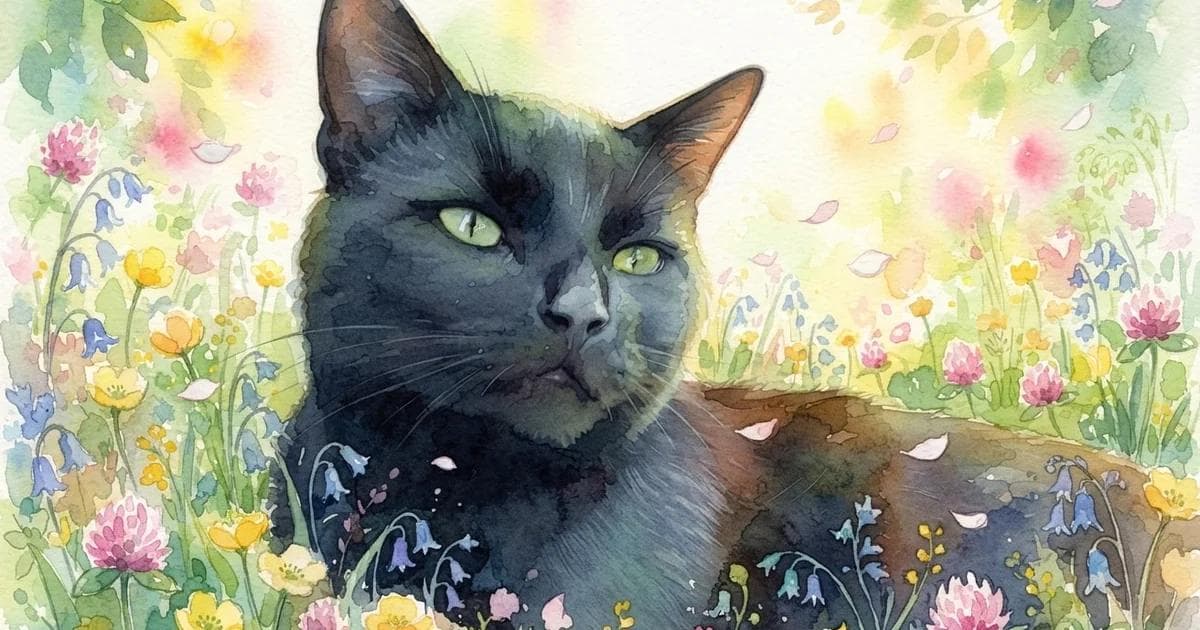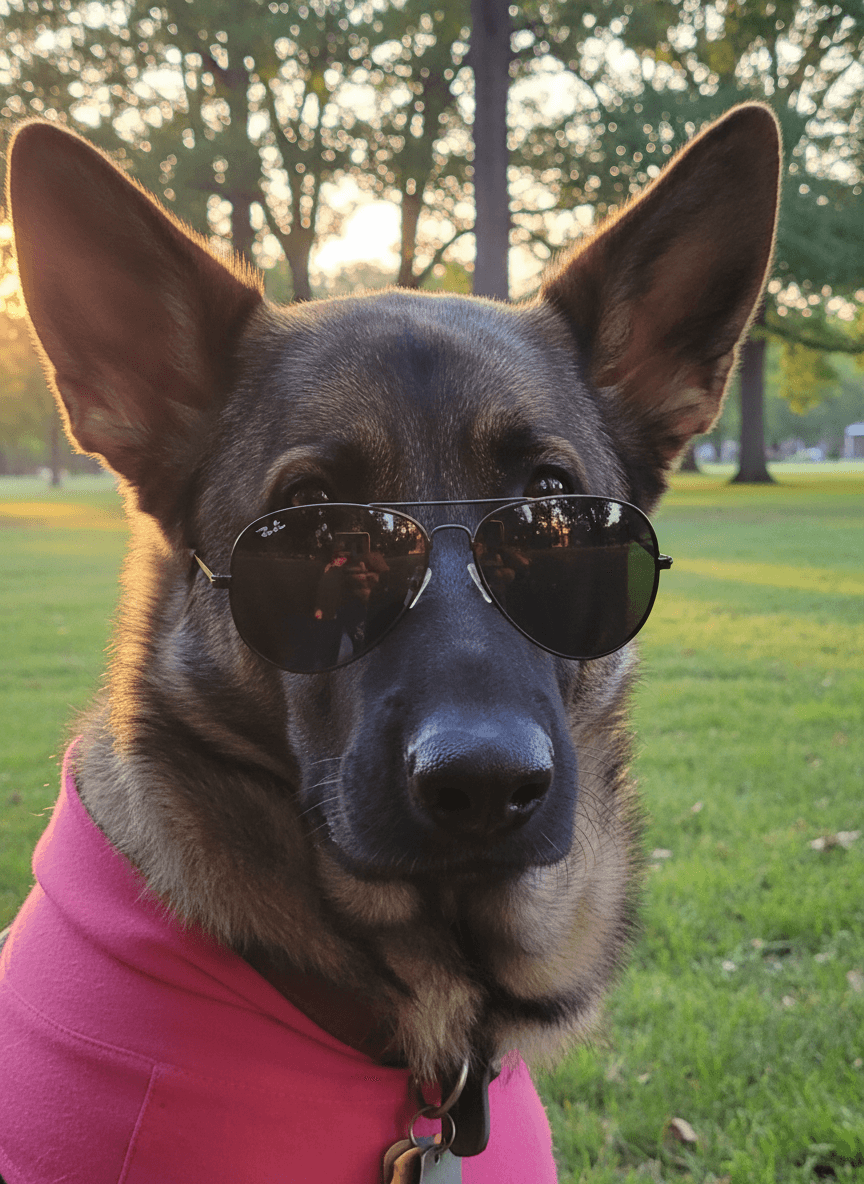
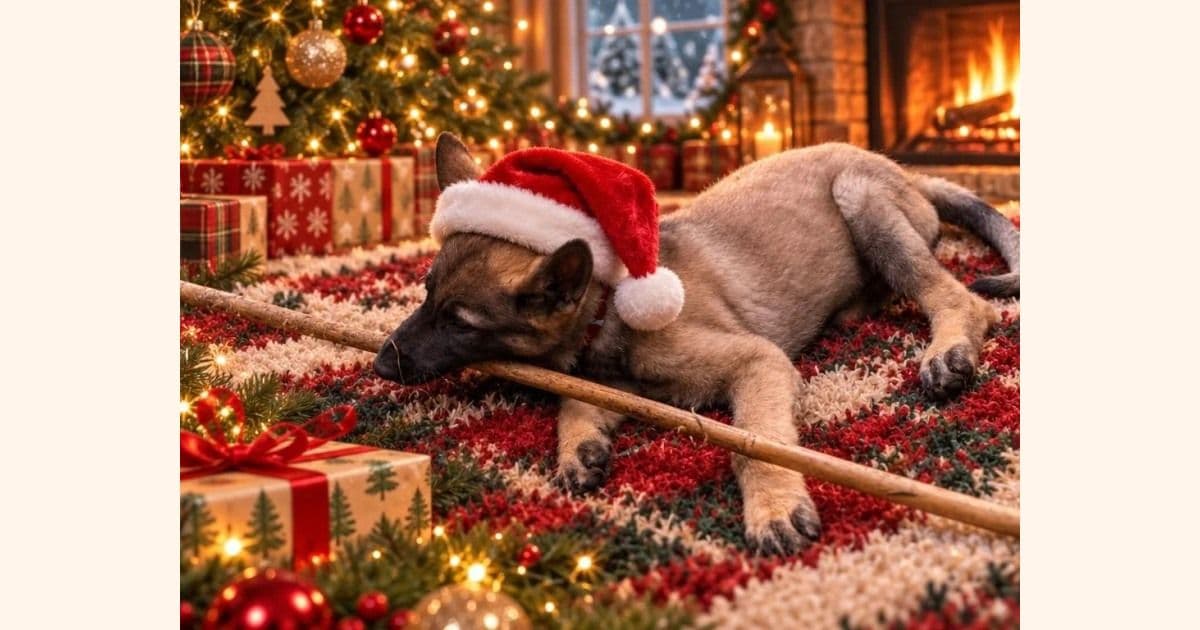
For a Christmas card with a typed greeting, download a festive pet portrait and place it in a card editor. If you’d like a card to write by hand, you can order a printed card with your saved portrait on the front for delivery in the UK.
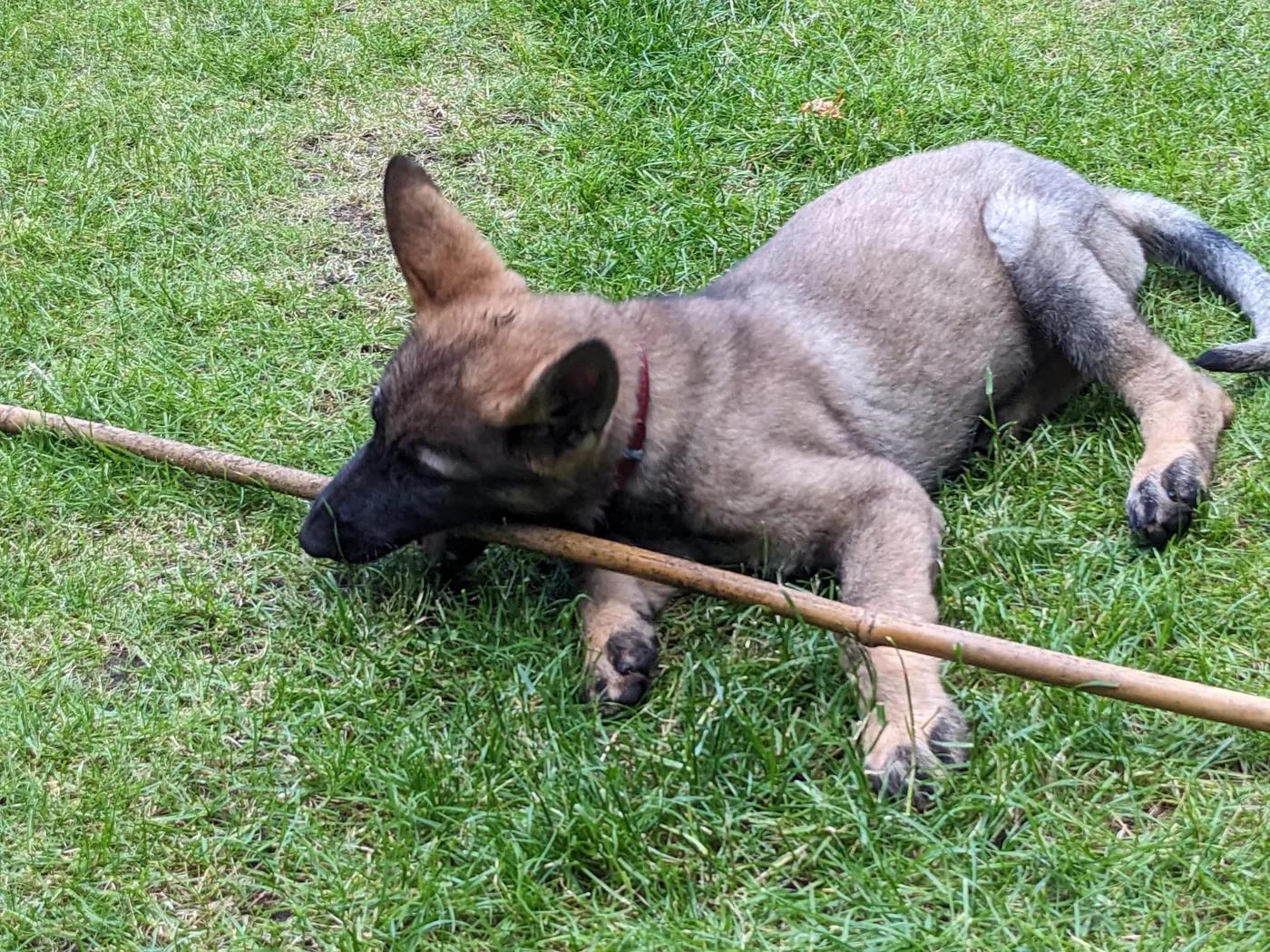
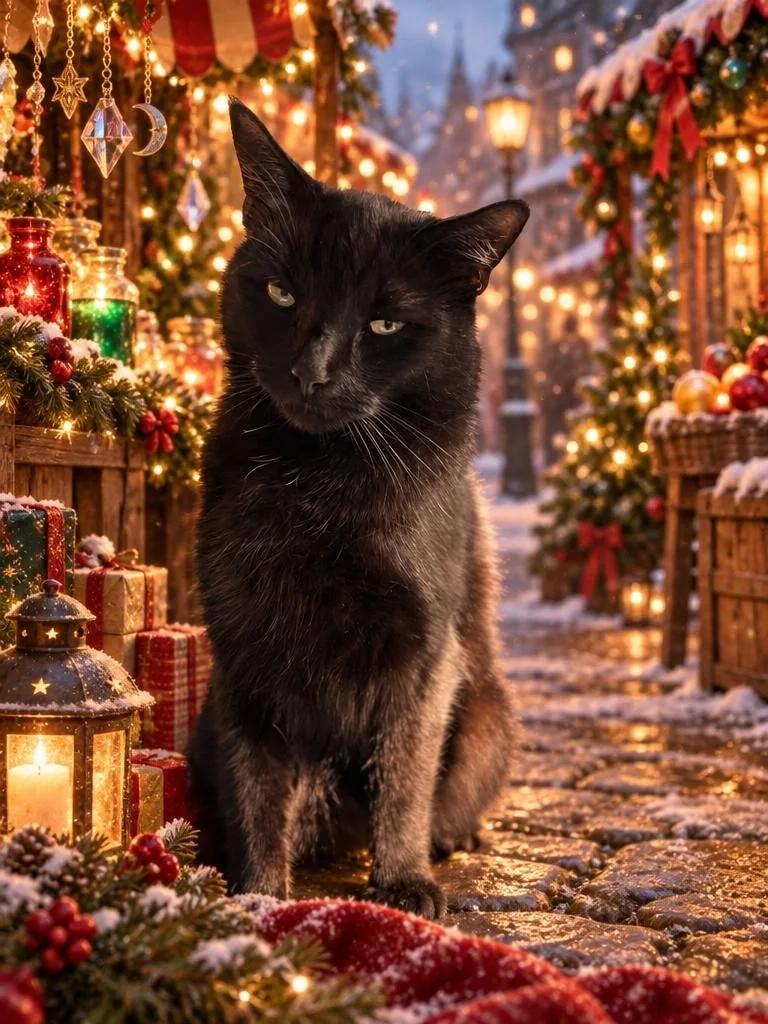
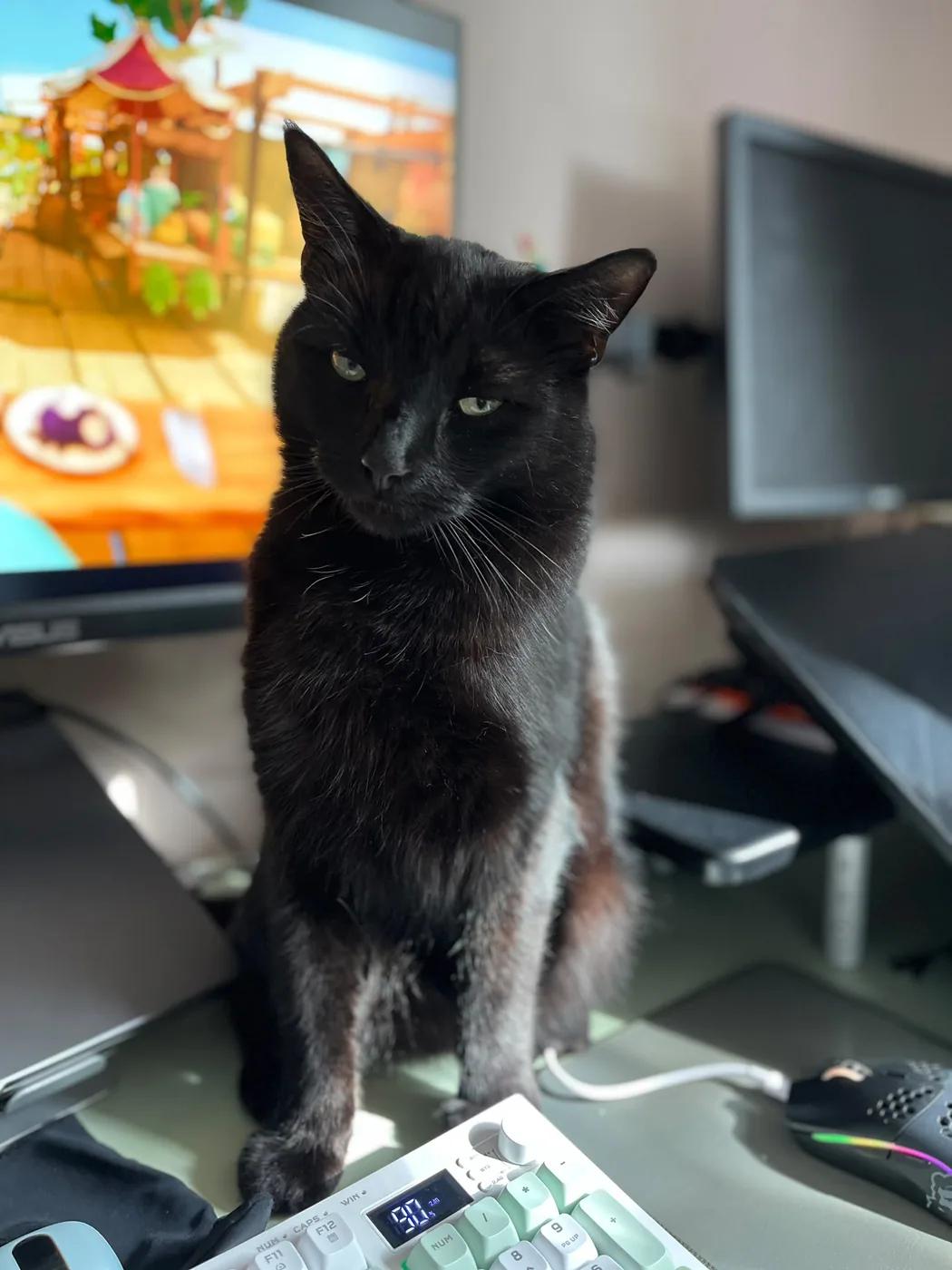
Eve’s garden stick made it onto her fireside card. Chuck went to a snowy market instead. We laid them out as a wide dog card and a tall cat card so you can see where the greeting fits in either shape.
Create the Christmas picture
- Upload or pick a saved pet in Create. Browse the Christmas pet photo generator for preset ideas. If you’re picking from several photos, the source-photo guide shows which angles give you room around the face and ears.
- Choose a scene and style. Christmas Magic works for a decorated room. Christmas Glow adds a festive finish to other scenes, including the snowy market we used for Chuck.
If your pet will be wearing a hat or antlers, leave some space above their head. That gives you more room when you crop the portrait to fit the card.
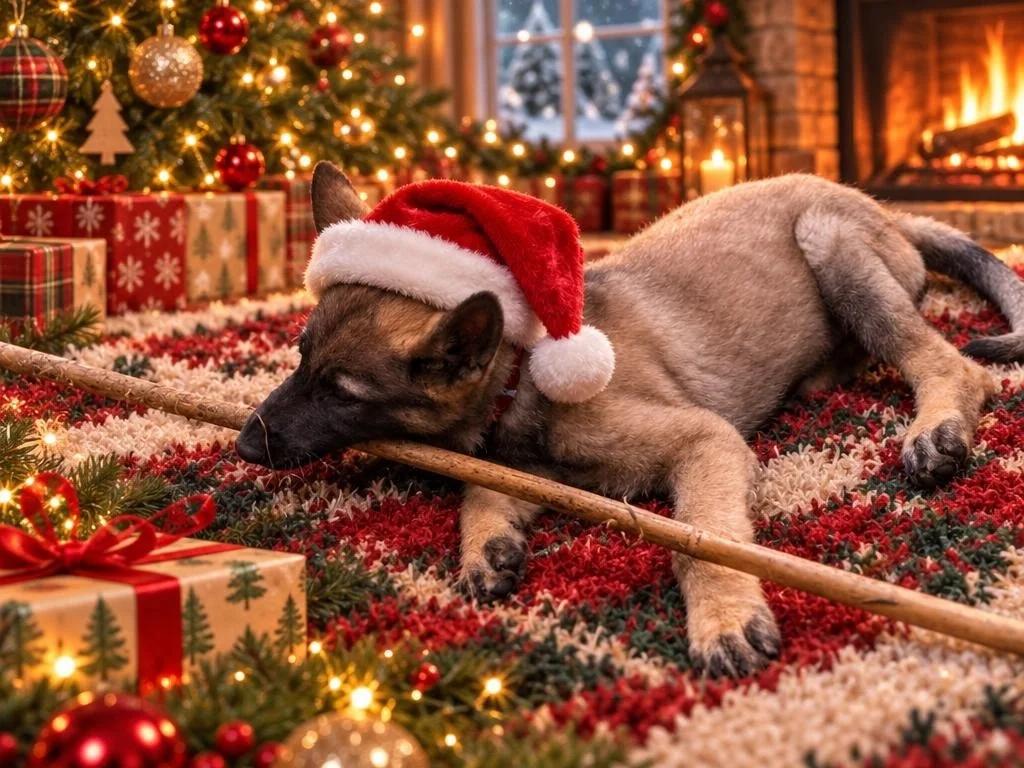
Creative choices
Creative Mode On
Christmas Magic
Twinkling Christmas warmth beside the tree and fireplace

Christmas Glow
Cozy red, evergreen, and gold holiday radiance.

Santa Hat
A plush red Santa hat with white trim and a pom-pom.
Upload a new photo or choose one of your saved pets next.
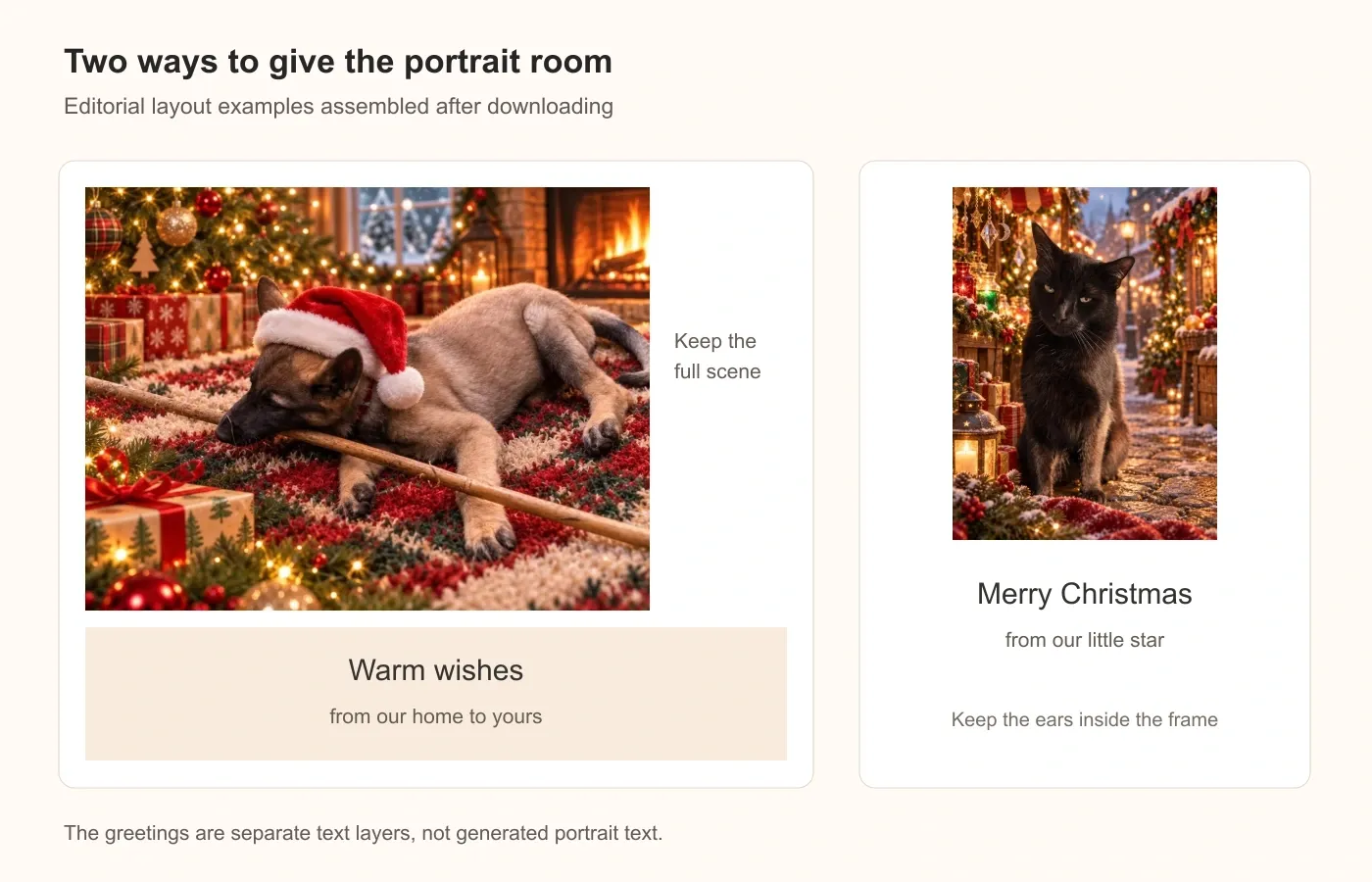
A landscape card gives us room for Eve and her stick. We used the top of the card for the photo and put the greeting below it.
Creative choices
Creative Mode On
Fae Market Fog
Potion jars and crystal charms glow through twilight mist
Christmas Glow
Cozy red, evergreen, and gold holiday radiance.
Upload a new photo or choose one of your saved pets next.
For a tall portrait like Chuck’s, put the greeting below the image so it’s easy to read. This is especially handy if you pick a busy scene with Christmas lights.
Both examples use Creative Mode On. Creative Mode Off keeps your pet photographic in a new setting. The Creative Mode guide explains the difference.
Place the portrait and greeting
Choose the card size and orientation in your editor or printer’s design tool. Insert the downloaded portrait without stretching it, then add the greeting as a text layer. You can correct a name or line break without generating another image.
Layouts shown in the examples
Swipe to compare all 2 tools →
| Portrait | Picture placement | Greeting placement |
|---|---|---|
| Eve’s landscape scene | Full landscape image in the upper area | A separate panel underneath |
| Chuck’s vertical portrait | Portrait frame with space around the ears | Short lines beneath the picture |
| A photo that fills the card to its edges | Use the printer’s exact bleed and trim template | Text inside that template’s safe area |
“Warm wishes from our home to yours” fits on Eve’s card. Chuck’s card has room for a shorter greeting on two lines. Keeping the words in a separate text box makes it easy to move them if you change the crop.
Prepare the card for print or sending
A template may crop a picture automatically. Reposition it in the preview so the ears, face and visible paws remain inside the frame. Use a border or a better-matched picture frame if filling the space removes a detail you want.
For printing, follow the selected card product’s file format, bleed and safe-area instructions. The portraits here are 1024 × 768 and 768 × 1024 pixels; the digital portrait printing guide shows how to calculate their size on paper. Calculate from the portrait’s pixels even when the editor exports a larger card canvas.
For email or a message, export an image from the card editor and open that file on your phone to read the greeting. For print, inspect the exported file and the printer’s order preview. A proof or small first batch is useful when colour and fine detail matter.
The 4 × 6 inch EditMyPet card fits the whole saved portrait on the front and comes with an envelope. The inside is for your handwritten message. A wide picture such as Eve’s may leave white space. The shop currently accepts UK delivery addresses.
Save the original portrait and the editable card design. For another seasonal direction, browse the holiday pet photo card ideas.
You can also use the picture for a paper ornament. Our free pet photo ornament template includes the cut lines and a mark for the ribbon hole.
For a parcel to go with the card, use the same portrait on printable Christmas gift tags. A greeting like “Love from Chuck” fits beneath the picture, with room to handwrite a different name on each tag.
Choose a festive scene, style and optional accessory for the image on your card.
Create a Christmas pet portraitFrequently Asked Questions
Can I put pets from different photos on one card?
This generation workflow uses one source image and does not merge separate pet uploads into a group portrait. You can generate separate portraits and arrange them together in your card editor.
Related Articles